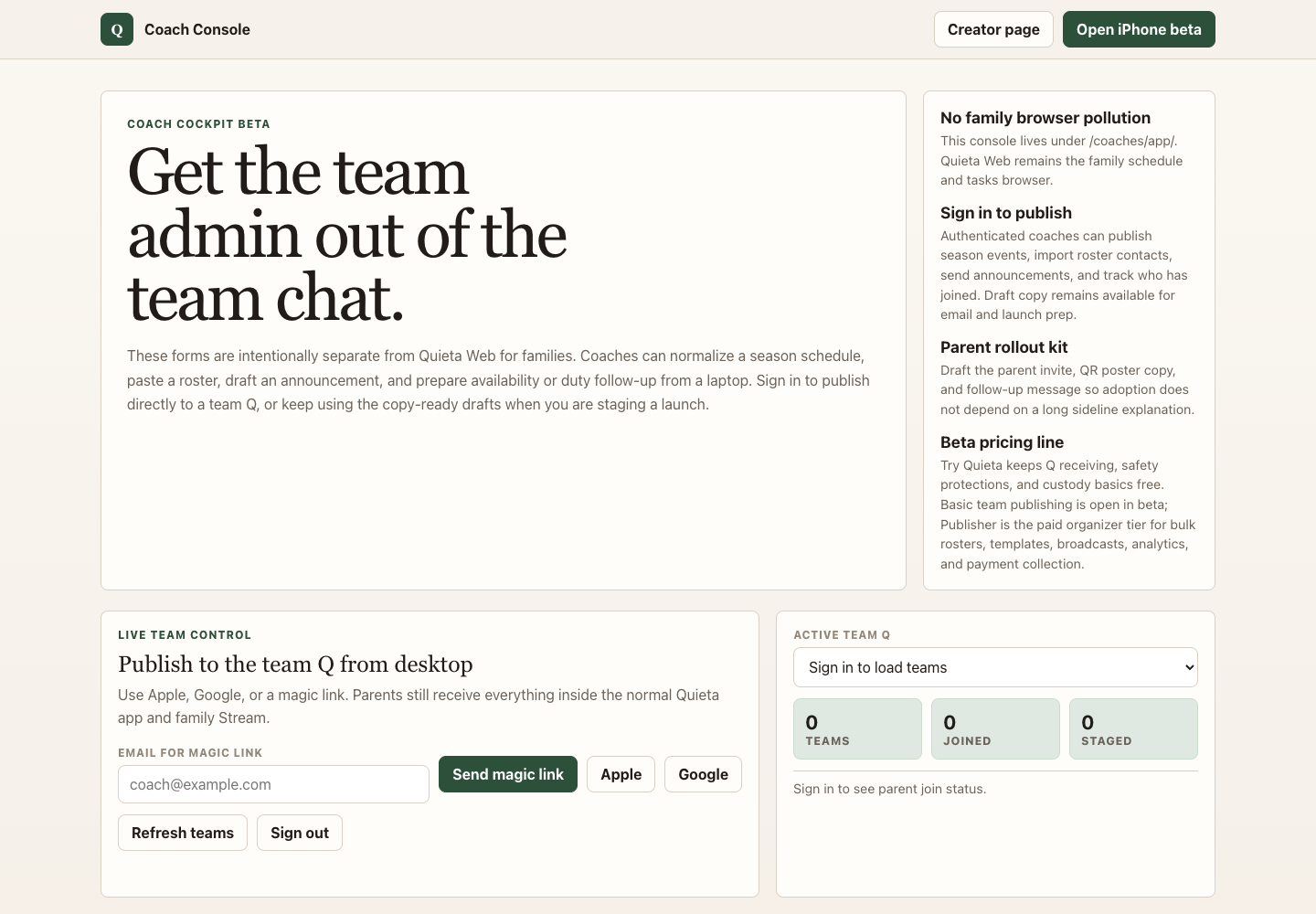
Use the Coach Console on desktop
When you have a full roster or season schedule, use the keyboard-first console instead of doing admin work on your phone.
Open the console
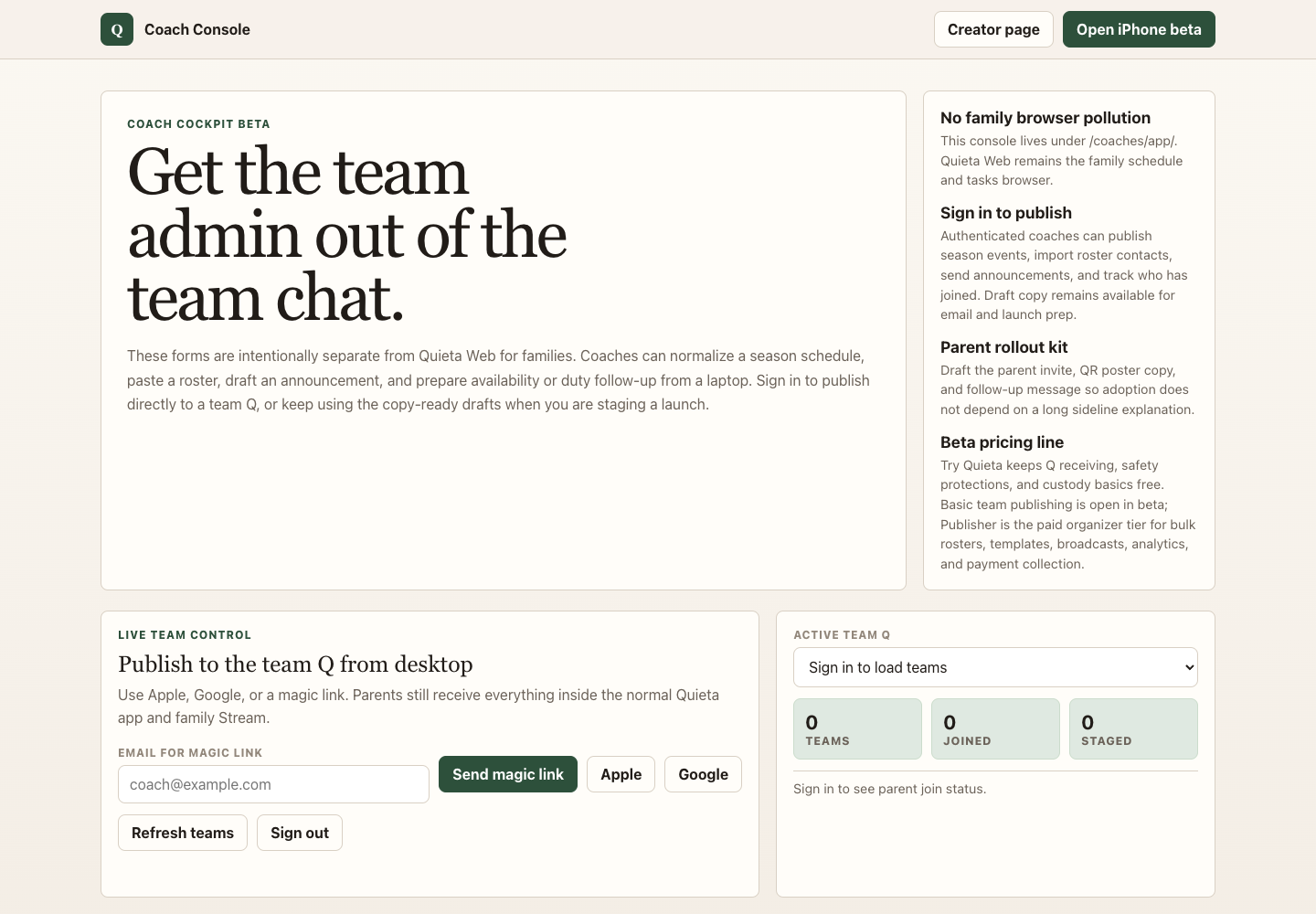
On a desktop or iPad browser, go to getquieta.app/coaches/app. The console is separate from family browser mode, so parents still use the main Quieta app.
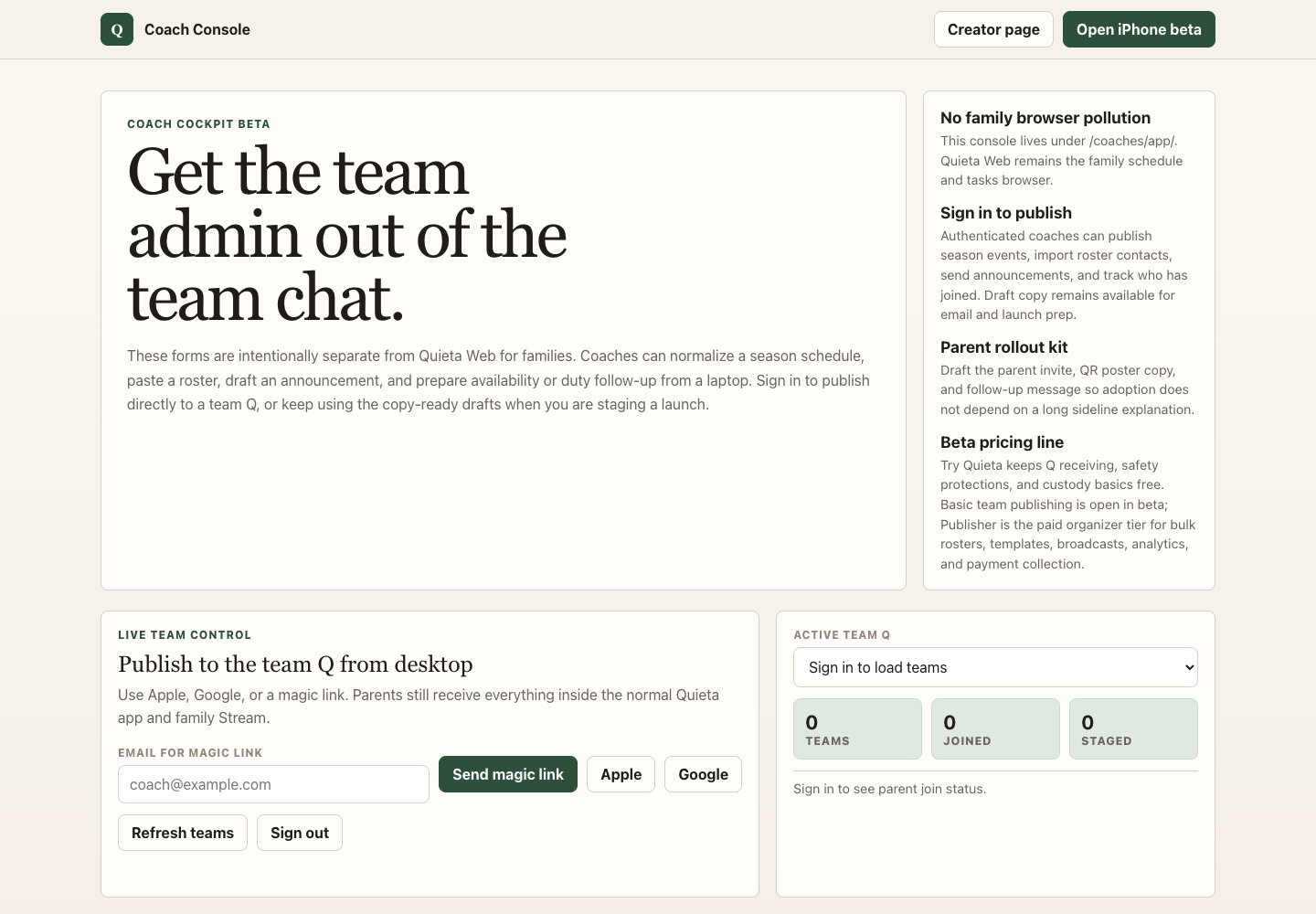
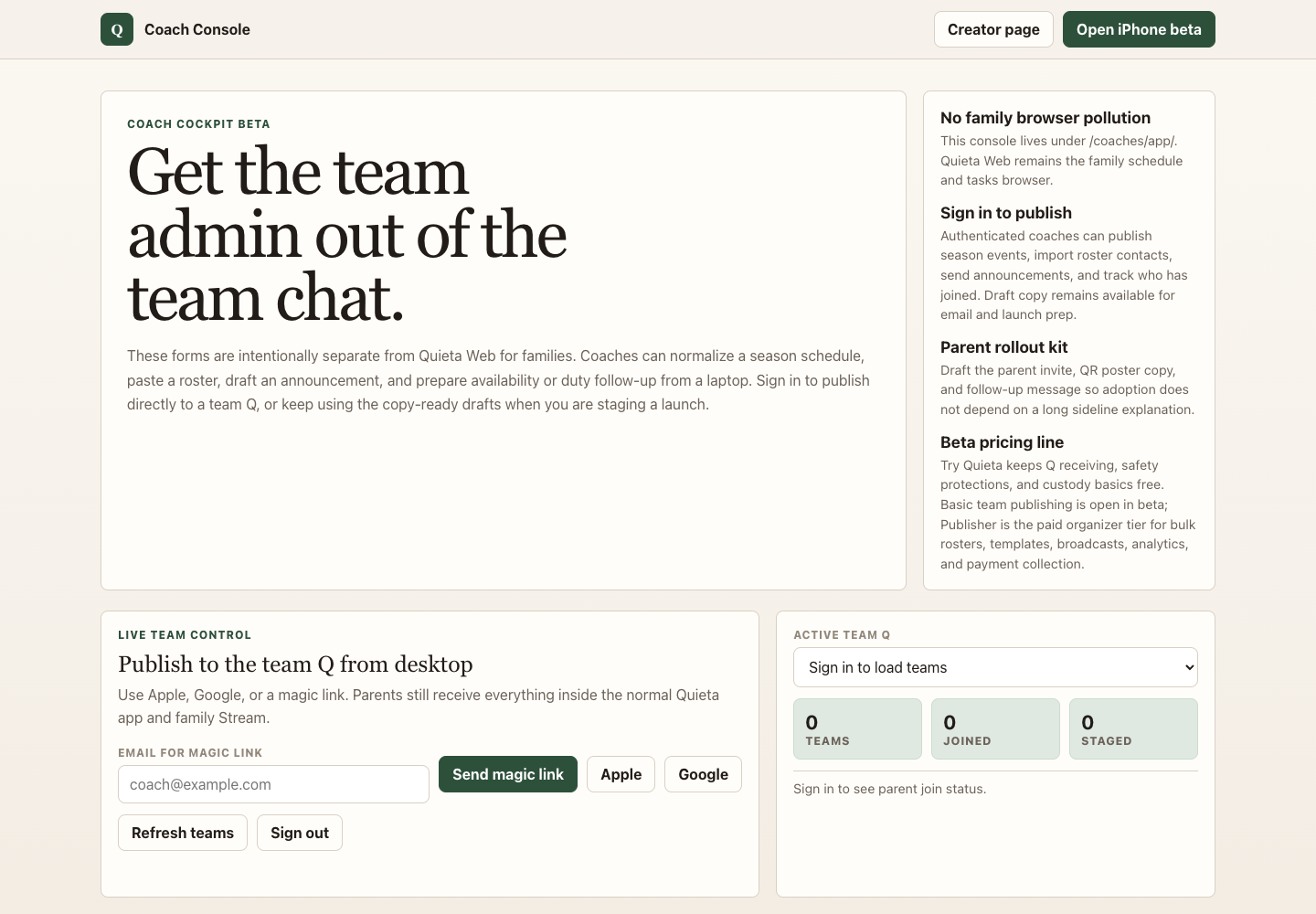
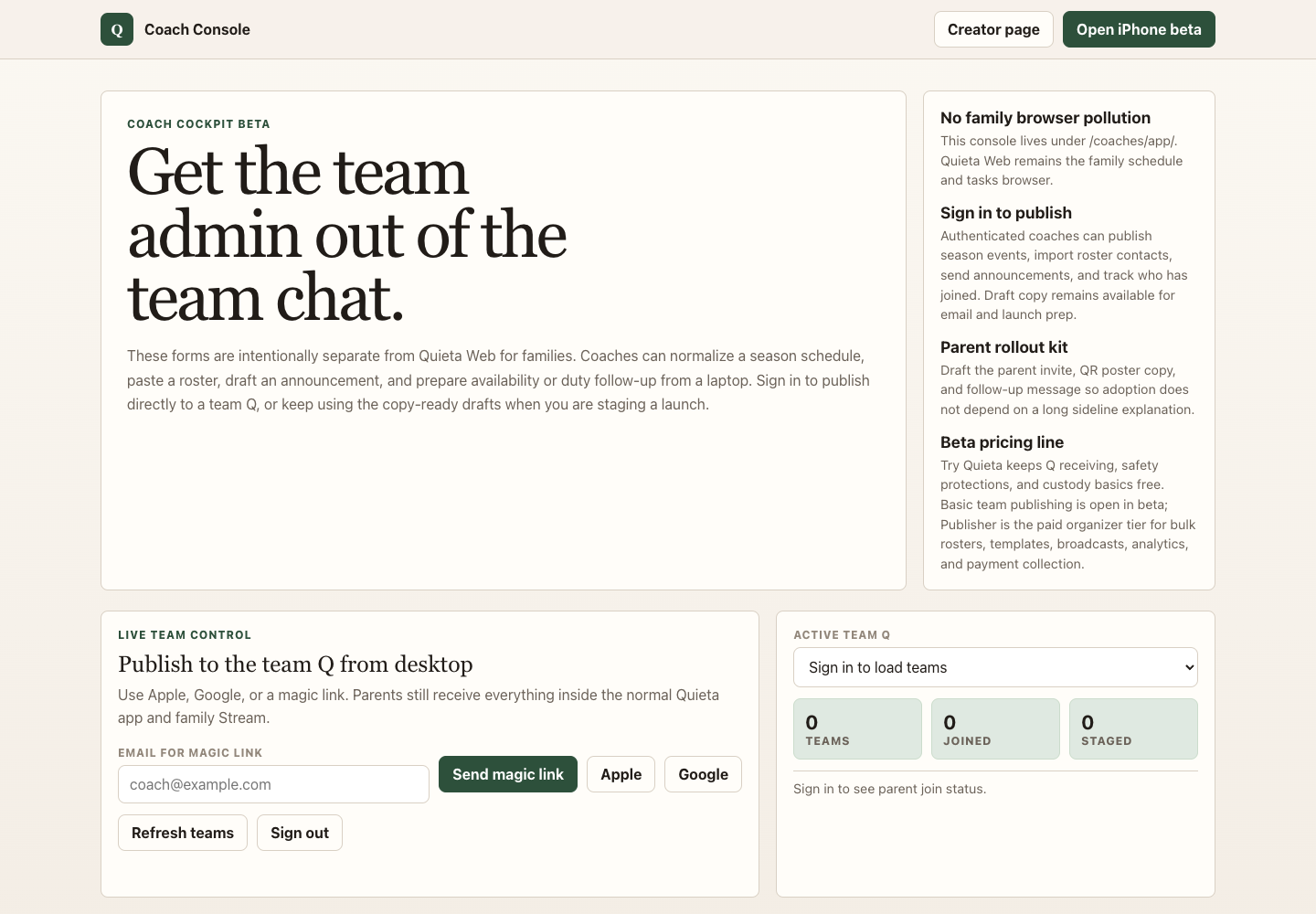
The top of the page is the Live team control panel — sign in with Apple, Google, or a magic link to your email. Once signed in, pick the team Q from the Active team Q selector and the page lights up with live counters (joined, staged, pending, awaiting RSVP) and a join tracker. Without sign-in everything still works as a draft / clipboard-prep page; the live publish, import, and announce buttons require sign-in.
Build the season
Open Season events, paste or type one event per line, and review the preview. If you are signed in with an active team Q selected, tap Publish to selected team to write the rows directly to that team Q — no copy-paste round-trip into the mobile app.
Best format: date, time, title, location. Example: May 4, 6:00 PM, Practice, Field 2. Commas or tabs both work; a short line like 5/12 6pm Practice North Field also becomes a draft row.
Paste the roster
Open Roster paste and paste names, emails, and phone numbers from a spreadsheet, email, or notes app. Signed-in coaches can Import to selected team and watch the join tracker move rows from staged to joined as parents accept the team invite.
Rows without app accounts stay marked as awaiting join until the family accepts the team invite. Contact-only rows are also visible in the live tracker so you can re-nudge by phone or email.
Send announcements and follow up
Open Announcement for schedule changes, opener-day reminders, and field-of-play updates. Choose the audience (Parents / Players / Everyone / Followers) and urgency, draft the post, and either copy it for paste or — if signed in with an active team Q — post it directly to the team Q announcement feed.
For RSVP gaps, ride coverage, and snack duty, switch to Duty and RSVP follow-up. The form drafts a copy-ready nudge based on the live waiting count without turning the coach page into family chat.
Launch the team
Use Parent launch kit when you are ready to invite the whole team. The form turns one team code or public Q page into copy-ready parent invite text, a 48-hour reminder script, and a QR poster you can print or hand off.
Tip: when a parent taps the team Q link in iMessage or email, installed users open directly to the join screen. If they do not have Quieta, they install first, then tap the same Q link again.